1. Open NVIDIA Build and log in
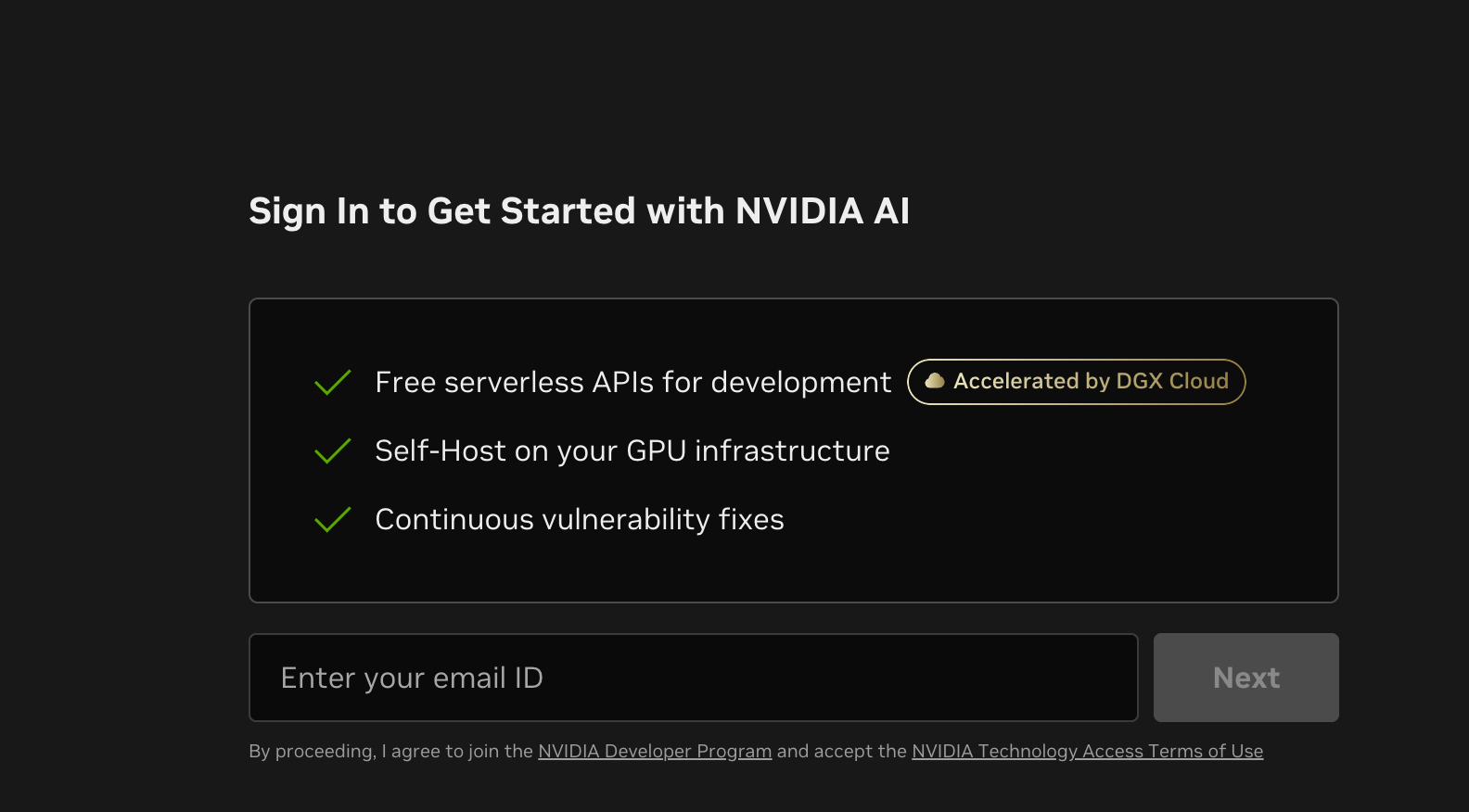
Go to NVIDIA Build and follow the prompt to sign in to NVIDIA AI. First-time users can continue with an email address or create an account. The page highlights free serverless APIs for development and the option to self-host on your own GPU infrastructure.
2. Open API Keys from the account menu
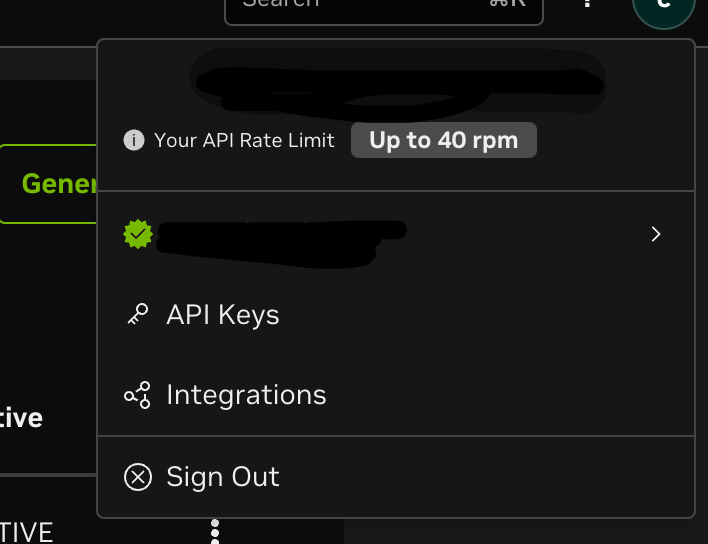
After logging in, click the account avatar or menu in the upper-right corner and choose API Keys. The menu may also show your current API rate limit; use the value displayed on the page as the source of truth.
3. Generate and manage an API key
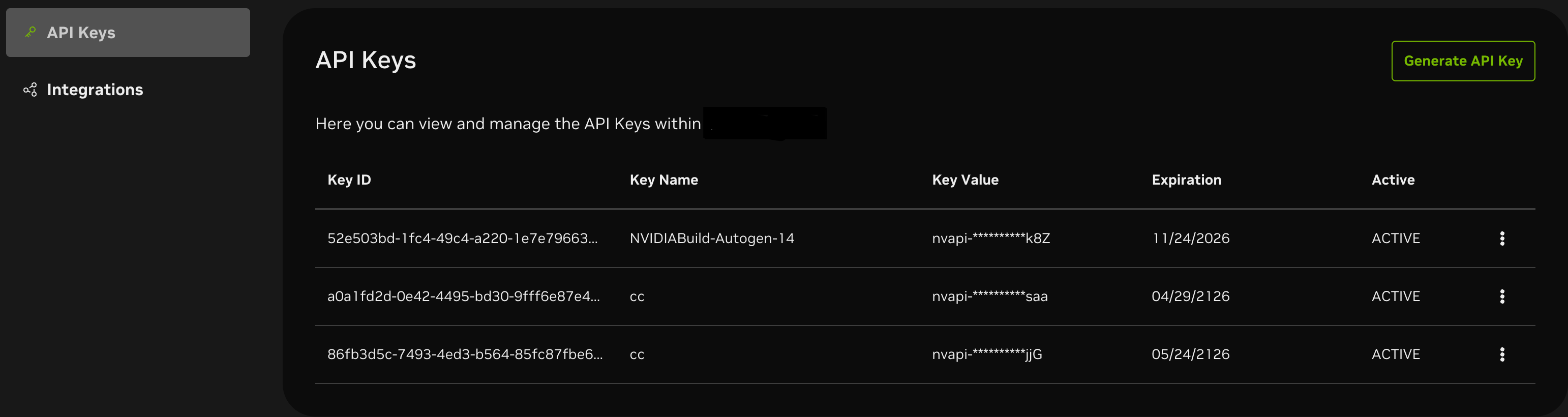
On the API Keys page, click Generate API Key. Copy the full key into the app, environment variable, IDE plugin, or script that will call NVIDIA NIM. If the full key is shown only once, save it immediately in a secure location.
Security tip: Do not put API keys in public repositories, screenshots, or chat messages. If a key may have leaked, revoke it in NVIDIA Build and generate a new one.
Loading comments...